
This isn’t what work is. It’s just repeating yourself. The number is concrete and will stick with you. The phrase is too vague. This isn’t what work is. It’s repetitive.
If you’re using Gmail for business, there are already features that can do a lot of the legwork for you automatically. Filters, automated email responses, automated replies, and even an increasing number of artificial intelligence Gmail email automation tools are designed to take care of the mundane emails so you can deal with the important emails. This tutorial will show you exactly how to set it up.
What Are the Reasons for Automating Email Responses in Gmail?
Here’s the honest version: most inboxes are full of emails that follow patterns. Appointment confirmations. Common customer questions. Out-of-office situations. Newsletter replies. New client inquiries that all ask roughly the same three things.
When you automate email responses in Gmail for these situations, two things happen. First, the person emailing you gets a faster reply often instantly. Second, you stop burning mental energy on messages that don’t need your brain in the loop.
Start Here: Gmail Auto Reply Setup for Out-of-Office Messages
The easiest place to start with Gmail auto reply setup is the vacation responder. It’s already in Gmail. Open Settings, find Vacation Responder, turn it on. Set your dates, write your message, pick who gets it. Gets the job done for a basic out-of-office. Just know it sends the same reply to everyone it can’t tell what they actually asked. But if you need replies that match what people actually asked, you’ll want filters.
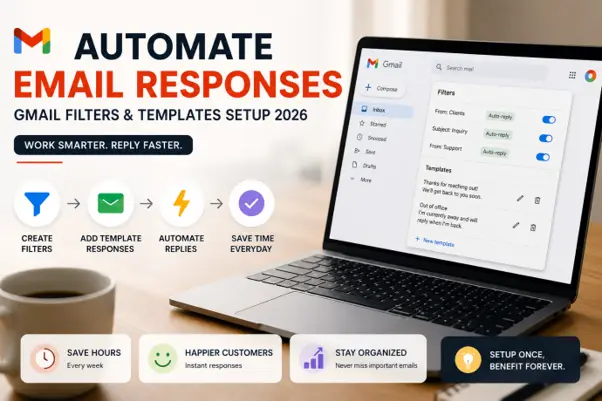
Gmail Filters and Automation: The Real Foundation
Gmail filters are where things get genuinely useful. A filter keeps an eye on your incoming mail. You tell it what to watch for — a sender, a word in the subject line, a domain — and it handles things automatically.
To set one up: Settings → See All Settings → Filters and Blocked Addresses → Create a New Filter. Fields for From, To, Subject, Has the Words, and more.
Practical example: pricing questions clog your inbox every week. Set a filter to catch any email with “pricing” in the subject. Gmail labels it, routes it, or fires back a reply with your pricing sheet attached. You never touch those emails again..
Gmail Canned Responses: Save Your Best Replies Once, Use Them Forever
Canned responses was Gmail’s previous name for templates. Now Gmail calls them Templates. In essence, what you do is compose the reply only once. After that, just use your saved reply whenever you need it. No more repetitive typing.
To switch it on, go to Settings, click See All Settings, then head to Advanced. Turn Templates on, save it, and you’re good to go.
Open a compose window, write the reply, then hit the three-dot menu at the bottom right → Templates → Save Draft as Template. Name it something obvious. Next time you need it, same menu, pick it from the list.
Good for things like:
- Answering FAQs from new clients
- Responding to media or press inquiries
- Sending follow-up instructions after a meeting
- Replying to job applicants at the early screening stage
Good canned responses don’t feel canned. Write them the way you’d actually talk to someone, leave space to add a personal line at the top, and they’ll read naturally every time.
Combine Filters with Templates for Fully Automatic Email Responder Gmail
This is where it gets really useful. You can set a filter to automatically fire off a saved template whenever a certain type of email comes in, no clicking, no checking, nothing from you.
Now whenever an email matches your filter conditions, Gmail fires off that template reply on its own.
This is your automatic email responder Gmail setup working at full speed. Someone emails you asking about your business hours? Filter catches it, template goes out, inbox stays clear. Someone submits a contact form that routes to your Gmail? Same thing, instant reply, zero effort from you.
The key is keeping your templates accurate and useful. A bad automatic reply, one with wrong info or a cold tone can actually make things worse than not replying at all. Write it carefully, send a few test emails, and go back to update it whenever anything changes.
AI Email Automation Gmail Tools Worth Using in 2026
Gmail’s built-in tools cover a lot. But there are also AI-powered apps that plug into Gmail and handle more complex work.
For businesses handling high volumes, Front and Help Scout are email platforms built on top of your existing inbox that add team assignment, automation rules, and AI drafting at scale. They’re overkill for a solo user but genuinely useful for teams dealing with hundreds of customer emails a day.
For a deeper look at how AI tools can change the way your business handles communication, aiautomationnyc.com covers the full range of what’s available right now and which options make sense for different situations.
A Simple System That Actually Works
Starting from scratch? Here’s a setup that works for most people. Switch on the vacation responder when you’re away. Write five to ten templates for the replies you send most. Set filters to label your most common email types so they’re easy to find. Then pick your most frequent email type and set one filter to reply to it automatically.
That alone can save two to four hours a week for most people. The emails don’t go away but you stop spending real brain power on the ones that never needed it.
The bigger win is mental. When your inbox isn’t a pile of things that all feel equally urgent, it’s easier to see what actually matters and deal with it properly.
To explore how AI tools can take this further, scheduling, CRM integration, voice-to-email, full inbox management visit aiautomationnyc.com for guides built around real business use cases.
FAQ
Settings → Vacation Responder → turn it on. Add your message, set your dates, save. For replies targeted to specific email types, use Filters combined with saved Templates.
Saved replies you pull up while composing. Gmail calls them Templates now. Enable under Settings → Advanced. Once saved, any template inserts into a reply in a couple of clicks.
Yes. Create a filter with the sender’s address in the From field and set the action to Send Template. Gmail fires it off automatically every time they write in.
Zapier, Superhuman, Shortwave, and Google’s Gemini are worth looking at. For solo users, any of those covers the basics. For teams drowning in customer emails, Front and Help Scout are a better fit they add routing rules and automation that Gmail alone doesn’t handle.
Only if the templates are bad. A well-written one with room for a personal line at the top reads fine. Most people getting a fast, clear answer to a common question don’t think twice about whether you typed it.
Related Posts

Invoice Automation Solutions That Actually Save You Time
Picture a small marketing agency with five clients and one bookkeeper.Every Friday, she manually opens up twelve invoices. She verifies the figures and enters them into a spreadsheet before emailing them individually. As of 6…

Lead Qualification Automation: The Complete 2026 Guide for Sales Teams
Picture this. A sales rep spends all Tuesday going through 40 forms. By the end of the day, only three are worth a call. The other 37 have the wrong budget. Or they're not a…

AI Outbound Automation: A Simple Guide for Sales Teams
A three-person sales team in a small New York office. Two hundred leads sitting in a spreadsheet nobody has time to touch. That's the actual problem AI outbound automation is solving, not some abstract "digital…